Skip to content

PixReel Pro documentationProduct videos

Adding videos to a product

YouTube and MP4, thumbnails, and ordering.

Add media

  1. Edit the product in WordPress.
  2. Open the Product Videos panel in the WooCommerce product data box.
  3. Add a YouTube URL, or choose an MP4 from the media library.
  4. Optionally set a custom thumbnail for the video.
  5. Drag rows to set the order customers will see.
  6. Update the product.
The product videos panel inside the WooCommerce product data box
The Product Videos panel: each row is one video, dragged into the order customers see.
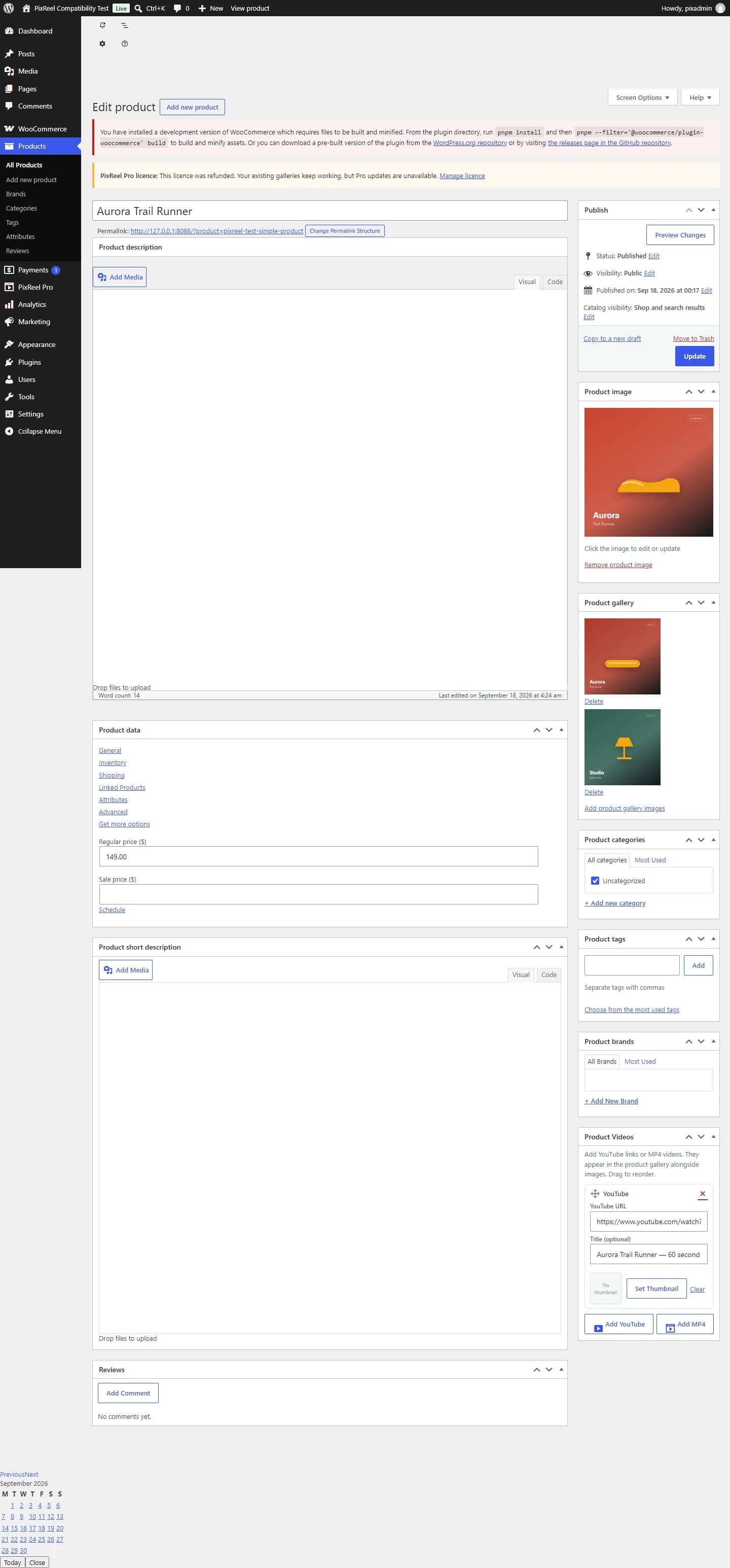
The WordPress product editor with the PixReel product videos panel
The product editor with the PixReel panel.

Thumbnails

Each video can have its own thumbnail. If you do not set one, a YouTube video falls back to its YouTube poster image.

Cookie preferences

Choose which optional technologies we can use. You can change this at any time from the link in the footer.

Cookie categories

Keeps the website working and secure, remembers your cookie choices and keeps your estimate form working. Always on.

Helps us understand how the website is used, such as which pages are visited, so we can improve it (Google Analytics).

Lets advertising platforms such as Google Ads, Meta and TikTok measure whether our ads led to an enquiry, and remembers ad click identifiers.